Storage and backups
A backup is a spare copy of everything in your system, kept somewhere else. This chapter shows you where yours goes and how to switch it on.
Why it matters
Most of the time a backup is needed not because something broke on our side, but because of an ordinary day at the office: someone deletes a customer with all its history, a year of stock entries is imported wrongly, or a departing employee clears records on the way out. In each of those cases the fix is a copy of yesterday.
What a backup contains
A backup is a complete copy of your system at one moment in time. It has two parts:
- The database — every invoice, customer, supplier, item, stock movement, accounting entry, user and setting.
- The attached files — the documents and images your team uploaded onto those records: scanned invoices, contracts, product photos, logos.
Both parts are needed. A database without its files restores your numbers but leaves every attachment broken, so the two are always taken together.
Who keeps a copy
A copy that sits on the same server as your system is not a backup, so every copy has to leave that server. Being backed up is not something you can opt out of — what you choose is where the copies go, and there are two arrangements.
- Until you connect storage of your own, we take a nightly copy of your database and files to storage we own, away from the server your system runs on. This needs no setting up. To use it you email us — see the end of this chapter.
- Once you connect an account you own — the rest of this chapter — your backups land there instead, on the schedule described below. That copy is one you can open, download, hand to an accountant or take to another provider, at any hour, without asking anyone. From then on the routine copies live in your account rather than with us; what we always keep, whichever you choose, is the final backup taken before an instance is ever removed.
Moving the copies into an account of your own is less an insurance policy than independence from us. That is the reason to spend the five minutes.
Choosing where your own copy goes
You choose the destination and you own the account it lands in, which means the copy stays under your control. There are two options.
| Google Drive | S3-compatible storage | |
|---|---|---|
| What it is | The Google Drive you already use for documents | Storage rented by the gigabyte from a cloud provider. A bucket is that provider's word for one storage area, rather like a top-level folder. |
| Good for | Companies already using Google | Companies already renting cloud storage, or wanting the cheapest option for large amounts |
| Who runs the backup | Our platform, every night | Your own system, at the frequency you choose |
| What you paste in | A Google authorisation token — a block of text Google gives you, in a format called JSON | Bucket name, region or address, access key and secret key |
| Works with | Google Drive | AWS S3, Backblaze B2, Wasabi, MinIO |
Neither option is better than the other. Pick the account you already have and will still have in two years.
Setting it up
The point of this procedure is to give the platform somewhere to put your backups, and to prove it can write there before you start relying on it.
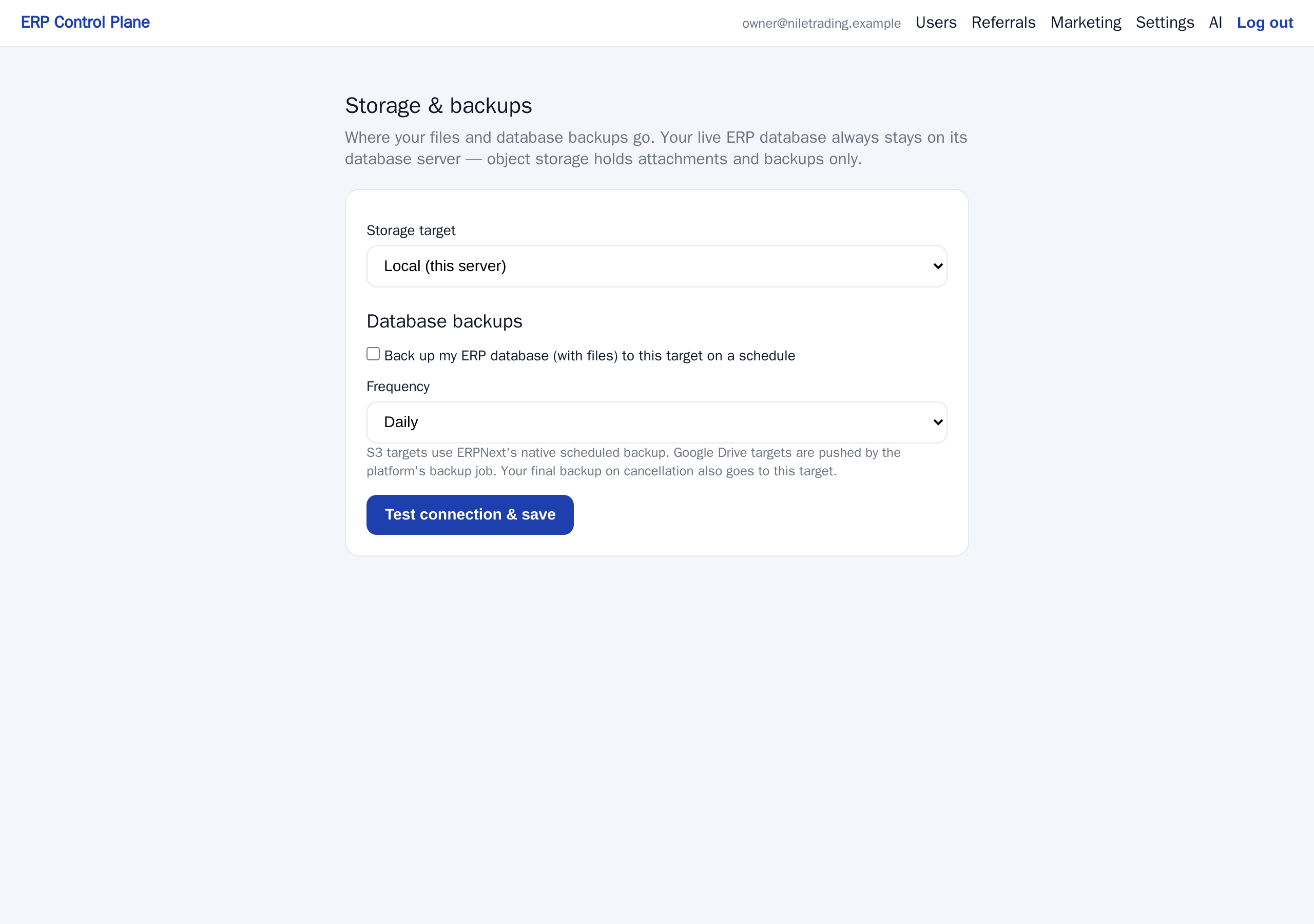
Open the control panel at app.nezmaro.com and open Advanced → Storage & backups in the menu.
- Choose your Storage target: Google Drive or S3-compatible. The form changes to show only the fields that target needs.
- For Google Drive: paste the authorisation token Google gave you into the Google OAuth token JSON box. It is stored encrypted and is never shown back to you.
- For S3-compatible storage: enter the Bucket name, then the Region or the Endpoint URL. Leave the endpoint empty for AWS S3; set it for Backblaze B2, Wasabi or MinIO, each of which publishes its own address. Then enter the Access key ID and Secret access key you generated in that provider's console.
- Optionally set a Folder / prefix — a name such as your company's, so everything we write stays inside one folder instead of scattering.
- Tick Back up my ERP database (with files) to this target on a schedule. Without this tick you have chosen a destination but scheduled nothing.
- Choose a Frequency, Daily or Weekly. This affects S3 targets only — see the next section.
- Click Test connection & save.
Why a successful save proves the settings work
That button does both of the things it names, in that order. Before anything is stored,
the control panel connects to your Drive or your bucket and writes a small file there, named
erp-control-plane-connection-test.txt.
- If the test fails, nothing is saved and the page shows the reason — wrong key, wrong bucket name, no permission to write.
- If the test succeeds, your settings are saved and that test file is sitting in the destination. Go and look at it. Seeing it is proof that real backups will land in the same place.
The point is to avoid the worst outcome: a backup setting that looks configured and has been failing quietly for six months.
An extra option for S3 users
The S3 target also offers Also store my ERP file attachments in this bucket. With this on, uploaded documents live in your bucket instead of on the server's disk, which keeps that disk small as your archive grows. It needs an add-on to be present in your system; if it is not there, the page tells you. Leave it off if you are unsure — backups work without it.
How often the backup runs
What the Frequency setting does depends on the destination you chose.
- Google Drive. The platform copies your system to Drive every night. The Daily and Weekly choice has no effect on a Google Drive target.
- S3-compatible storage. Your own system uploads the backup at the frequency you picked, daily or weekly.
If you are on S3, choose Daily unless you have a reason not to. Daily means that in the worst case you lose one day of work, which can usually be reconstructed from paperwork and email. Weekly means you could lose six days. Backups are small compared with what they protect, so storage cost is rarely the deciding factor.
What happens if you cancel
Cancelling does not mean your data disappears — and nothing is removed on the day you leave. Your system is locked and then kept, still backed up every night, for 30 days (if it ends after a failed payment: until 30 days from that payment or 7 days from the end, whichever is later). Restart your subscription inside that window and everything comes back, same address and same data. We email you when the lock starts, and again before the window closes.
Only when that window runs out do these steps run automatically, always in this order:
- A final backup of the database and files is taken.
- It is checked, to confirm the database dump really was produced and that it arrived at its destination complete, byte for byte. If a good backup cannot be produced, nothing is removed and we investigate instead.
- Only then is your system removed.
- That final backup is kept for 90 days.
So there are two windows, one after the other: the grace period, with your system still there and one click from working again, then 90 days in which only the backup remains and a restore is something you ask us for. Together they are your margin — time to change your mind, to move elsewhere, or to retrieve one document you had forgotten. If you had set a storage target, the final backup goes there too, so a copy sits in your own account and not only in ours.
Asking for a restore or an export
A restore puts an old copy back over your live data, so a person handles it rather than a button you might click by accident.
Email support@nezmaro.com from the address on your account and tell us:
- Your subdomain — the
yourcompanypart ofyourcompany.nezmaro.com. This is what identifies your system. - What you need: a full restore to a particular date and time, or an export of your data to take with you.
- For a restore, what went wrong and roughly when — it helps us pick the right copy.
A full restore returns your system to how it looked at the moment of that backup. Anything entered after it will be gone, so tell us if there is recent work worth saving first.