A tour of your ERP
How the screen is laid out, the fastest way to reach anything, and the one idea — draft, submitted, cancelled — that explains most of what the system does.
The working screen, and the page for your customers
Your ERP answers on one address but shows two very different pages depending on how the address ends, and knowing which one you are looking at saves a lot of confusion.
| The working screen | The page for customers | |
|---|---|---|
| Address ends with | …nezmaro.com/app | …nezmaro.com (nothing after it) |
| Looks like | A full working screen: a list of business areas down the side, a search bar across the top, lists and forms in the middle | A plain page with little more than My Account and a newsletter box |
| Meant for | You and your staff — all real work happens here | Your customers and suppliers, if you later choose to let them look up their own orders and invoices |
Nearly everyone who reports that the system “looks empty” is on the customer page by
accident. If what you are looking at has no list down the side, add /app to the
end of the address and press Enter.
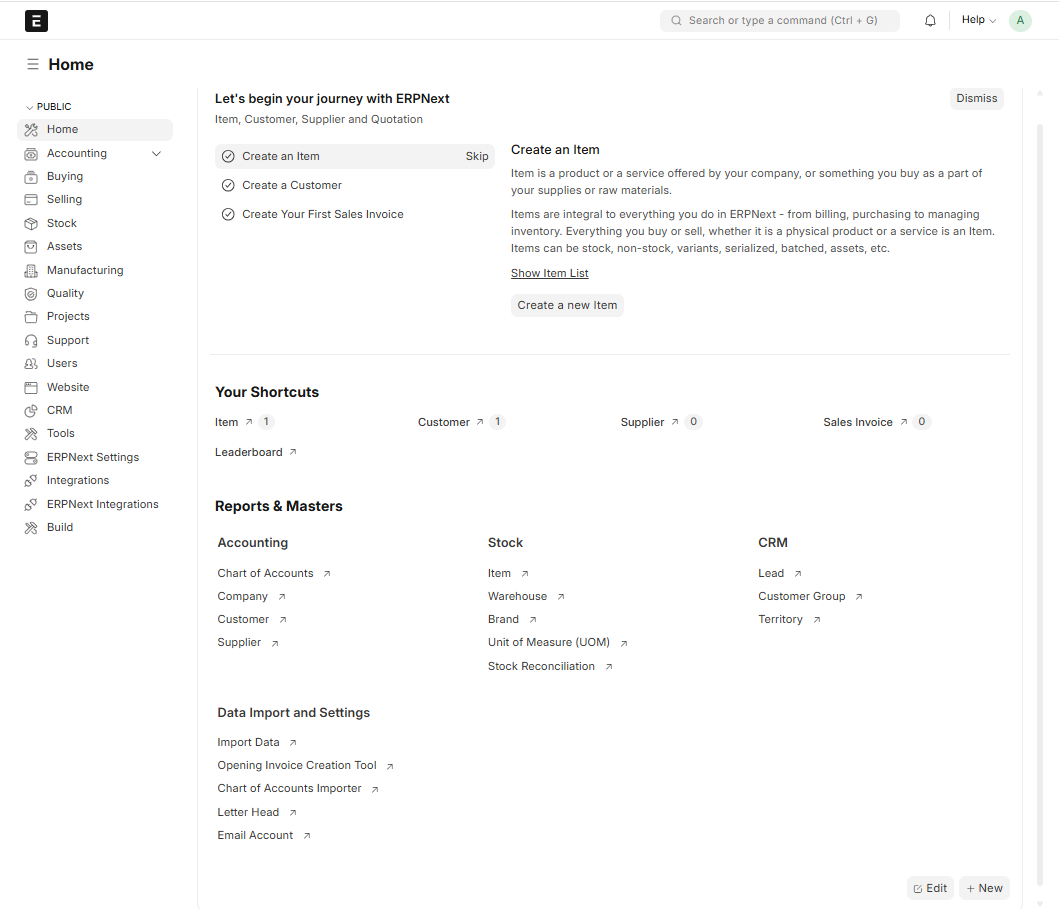
The list down the left
The system is grouped by area of the business, and clicking an area shows its shortcuts, its reports and its charts. You are not expected to use them all — most companies live in three or four.
| Area | What you will find there |
|---|---|
| Accounting | Sales and purchase invoices, payments, your list of account categories, and the financial reports |
| Buying | Suppliers, purchase orders, and records of goods received |
| Selling | Customers, quotations, sales orders, price lists and sales figures |
| Stock | The things you buy and sell, your warehouses, stock movements, and what you currently hold |
| Assets | Equipment and property the company owns, and their upkeep over time |
| Manufacturing | What each product is made of, production orders and planning |
| Quality | Inspections, quality targets, and records of things that failed a check |
| Projects | Projects, tasks, hours worked, and whether a project made money |
| Support | Complaints and requests from customers, and how quickly they were handled |
| Users | The people who may sign in, and what each of them is allowed to see |
| Website | Public web pages, blog posts and enquiry forms |
| CRM | People who might buy from you and the deals in progress — everything before someone becomes a customer |
| Tools | Notes, to-do lists, files and the email inbox |
What each person sees depends on what they are allowed to do. A warehouse clerk with stock permissions only sees a much shorter list than you do — that is the system working correctly, not a fault.
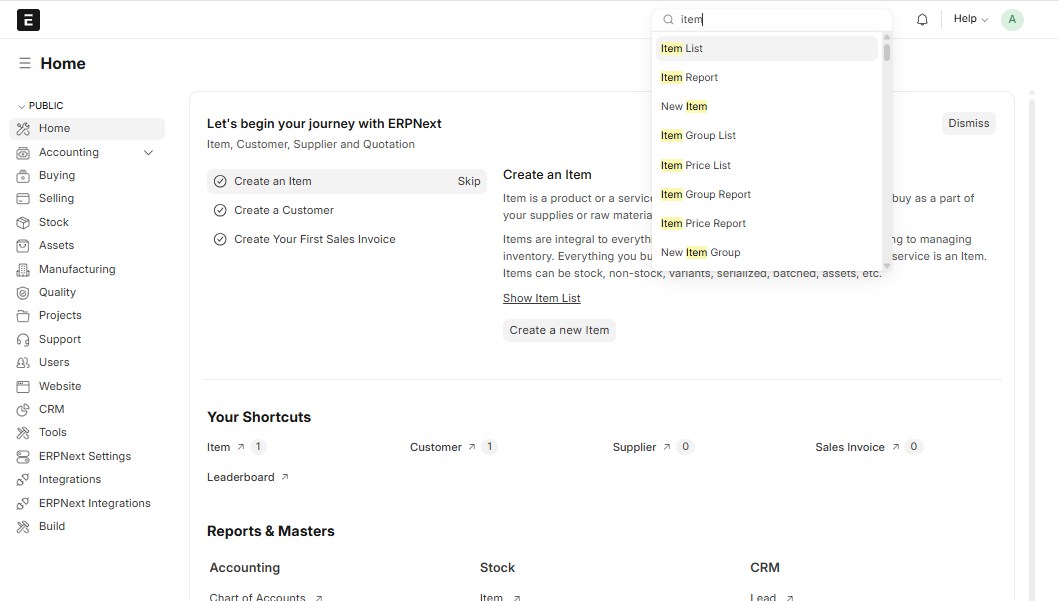
The search bar is the real way to get around
The bar across the top reaches anything in the system in a couple of seconds, which is why experienced users barely touch the list on the side.
- Press
Ctrl+Gfrom anywhere, or click the bar at the top that reads Search or type a command. - Start typing what you want. Suggestions appear underneath as you type.
- Pick one of them:
- A kind of record — Sales Invoice, Item, Customer — opens the list of all of them, or choose New to create one.
- A particular record — an invoice number, a customer name, a product code — opens it directly.
- A report — Accounts Receivable, Stock Balance — runs it.
- A setting — Company, Print Settings — opens it to be changed.
Lists and forms
Every kind of record behaves the same way, which is why learning one screen teaches you all the others.
- A list shows every record of one kind — all your sales invoices, for example. From here you filter, sort, and act on several rows at once.
- A form opens when you click one row. It shows that single record, its fields and its lines, and the buttons that act on it.
To see one customer's invoices, for instance: search for Sales Invoice to open the list, then use the filter row above it to add a filter on Customer and pick the name. A filter you use often can be saved from there and reopened with one click.
Draft, submitted, cancelled — learn this one first
If you understand nothing else about this system, understand this. Every record that touches your money or your stock — invoices, orders, delivery notes, stock movements, payments — passes through three states, and the state decides what the record is allowed to do.
| State | What it means | Can you edit it? | Effect on stock and accounts |
|---|---|---|---|
| Draft | Saved, but not official yet — a working copy | Yes, freely | None at all |
| Submitted | Official and locked | No — only a few harmless fields | Full: stock moves and the accounting entries are made |
| Cancelled | Reversed, but kept on the record | No | Reversed — the entries are undone |
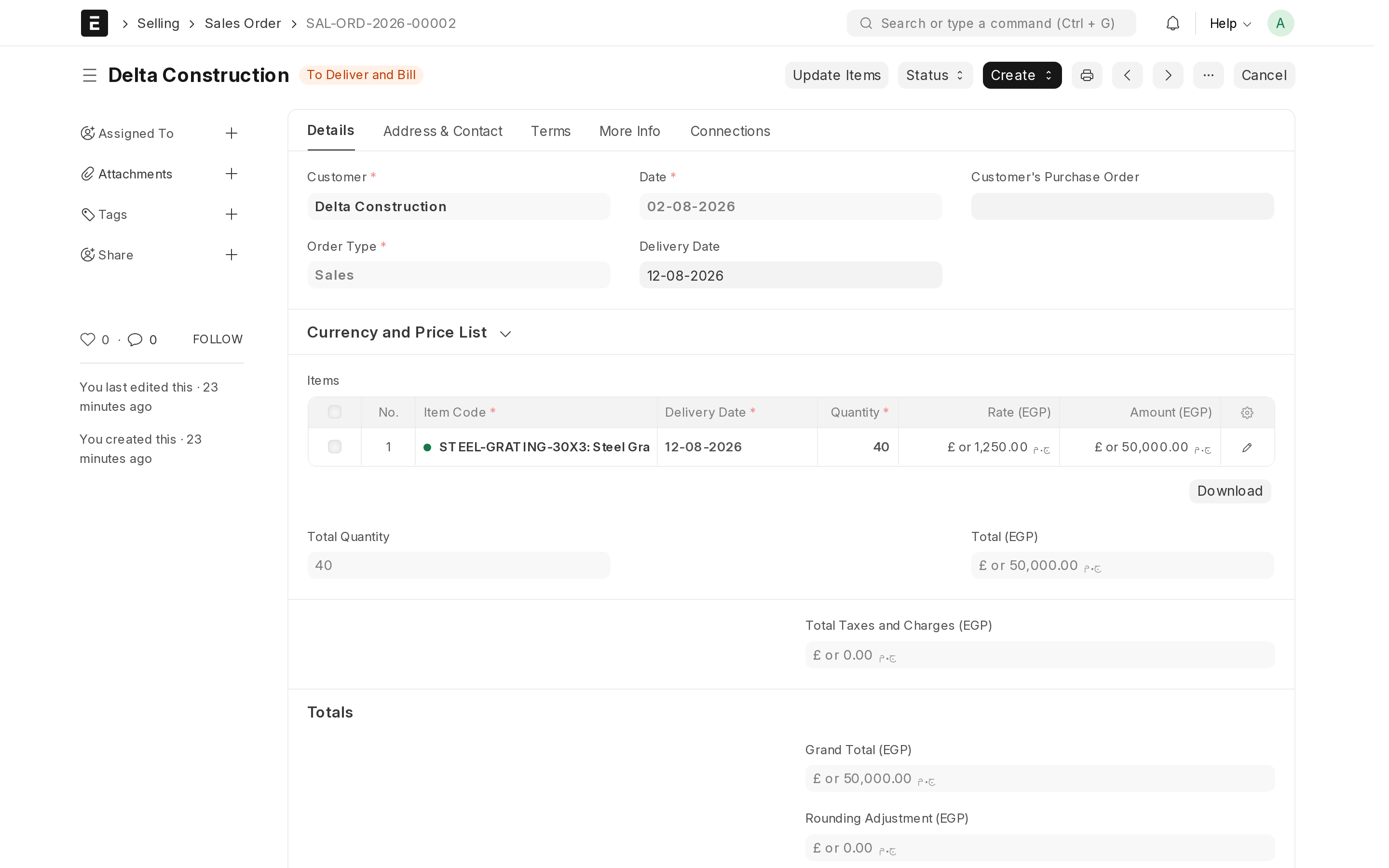
The buttons that move a record between states
- Save (
Ctrl+S) keeps it as a draft. Nothing has happened to your stock or your accounts. Save freely and often; a half-finished invoice sitting as a draft harms nothing. - Submit makes it official. This is the moment stock actually moves and the accounting entries are actually made. Read the record once more before you press it.
- Cancel reverses an official record. It stays in the list, marked cancelled, and its effect on stock and accounts is undone.
- Amend appears after cancelling. It opens a fresh, editable copy of the same record, which you correct and submit again.
Correcting a record you have already submitted
You cannot edit an official record, and you should not delete it. This is the correct route, and it takes under a minute.
- Open the record. The status at the top reads Submitted.
- Click Cancel and confirm. The status changes to Cancelled and its effect on your stock and accounts is reversed.
- Click Amend. A copy opens as a new draft, with a name based on the old one —
ACC-SINV-0007becomesACC-SINV-0007-1. - Fix what was wrong, then press Submit on the corrected copy.
Why the cancelled copy stays in the list
The cancelled record stays visible on purpose. Accounting rules — and any auditor or tax inspector — require that a document which once existed cannot silently disappear. The trail shows what was issued, that it was reversed, and what replaced it. Deleting mistakes instead of cancelling them is exactly what an audit looks for.
Comments, attachments and history
Every record carries its own file of notes and documents, which saves a great deal of searching through email later.
- Comments, at the bottom of the form — write why a discount was given, or what
the customer agreed on the phone. Type
@followed by a colleague's name to notify them. The comment stays attached to the record permanently. - Attachments, in the side panel of the form — the signed purchase order, the delivery photo, the bank transfer receipt. The file lives with the record instead of in somebody's downloads folder.
- History — the system records who created, changed, submitted or cancelled the record, and when. Nobody can edit that trail.
The notification bell
The bell in the top corner collects what needs your attention: comments that mention you, records handed to you, and anything shared with you. Handing work over is the useful part — from any record you can assign it to a colleague, and it appears in their bell and their to-do list instead of in a chat message that gets lost.
Keyboard basics
Three shortcuts cover most of the day.
| Keys | What it does |
|---|---|
Ctrl+G | Jump to the search bar from anywhere |
Ctrl+S | Save the record you are on, as a draft |
Esc | Close the box that is open, or the search suggestions |
In lists and in the lines of an invoice, the Tab key moves from field to field, which is far faster than reaching for the mouse on a twenty-line invoice.
Where to go next
With the layout and the three states clear, the selling chapter follows one real order from quotation through to a paid invoice — and what you learn there applies, under different names, to buying and stock as well.